

Personal Links
What's on this page
About Personal Links
For those cases where you need to use a third-party mail system to distribute survey invitations but also need to track which response belongs to which recipient, Qualtrics can generate a list of unique, or “personal”, survey links. These links are tied to specific survey recipients, and the names and any other uploaded embedded data will be included with the responses in the results.
Attention: Personal links are unique and single-use. Do not share your personal link with others.

When you generate personal links, Qualtrics provides a spreadsheet that contains a row for each recipient including their name and their personal survey link. Most mailing systems can accept such a spreadsheet and will have a mail merge capability to include each recipient’s survey link in their email.
Attention: Personal links may be altered when they are sent through third-party software, such as Salesforce.
This page discusses how to generate that list of personal links for use in a third-party mail system.
Generating Personal Links
Personal links have the same functionality as the individual links that are created when sending a distribution through Qualtrics. They cannot be used more than once.
Qtip: Personal links are often generated for mailing lists that have already been created. For more information, see Creating a Mailing List.
To generate personal links, follow the steps below:
Navigate to the Distributions tab.
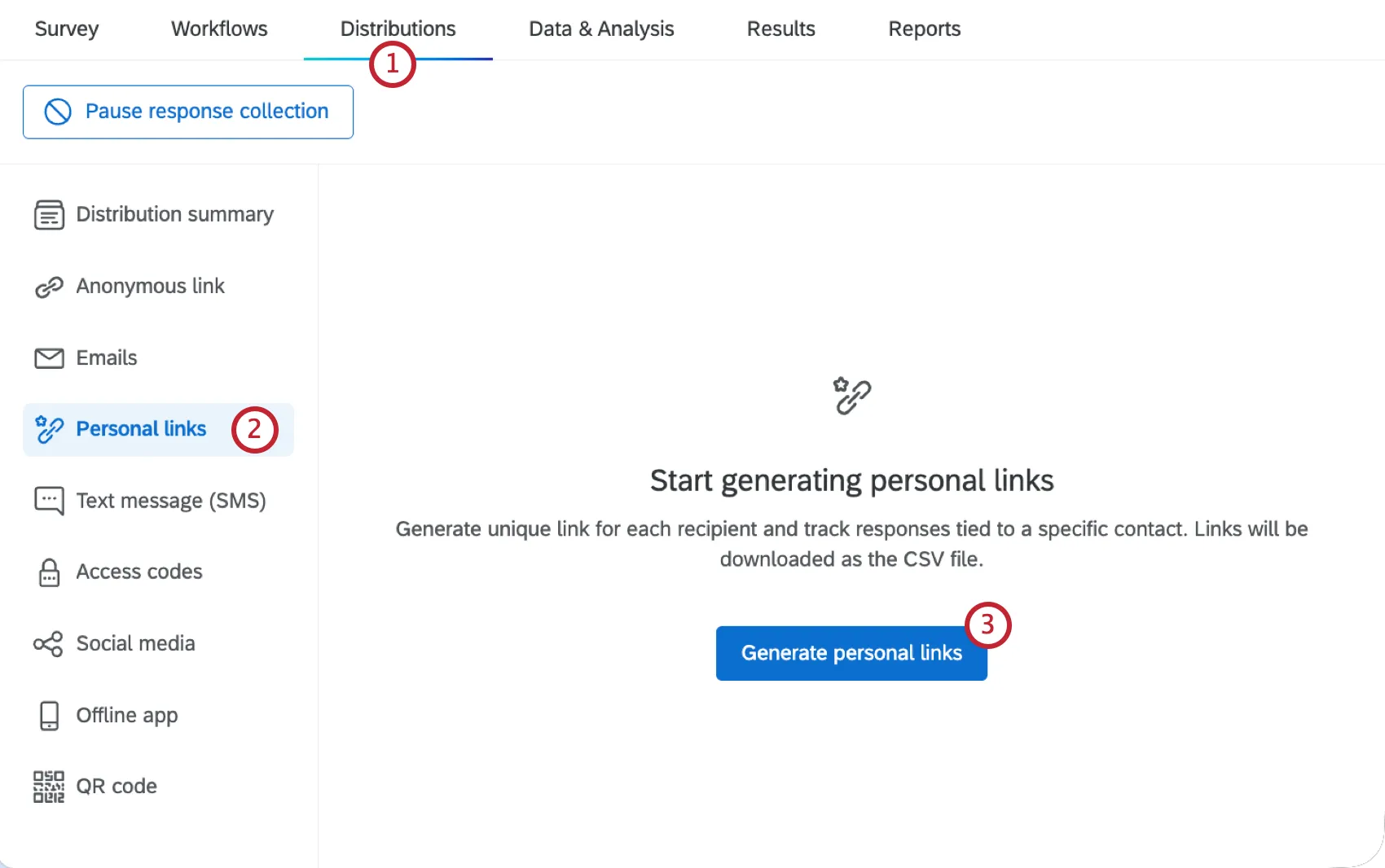
Select the Personal links section.
Select Generate personal links.
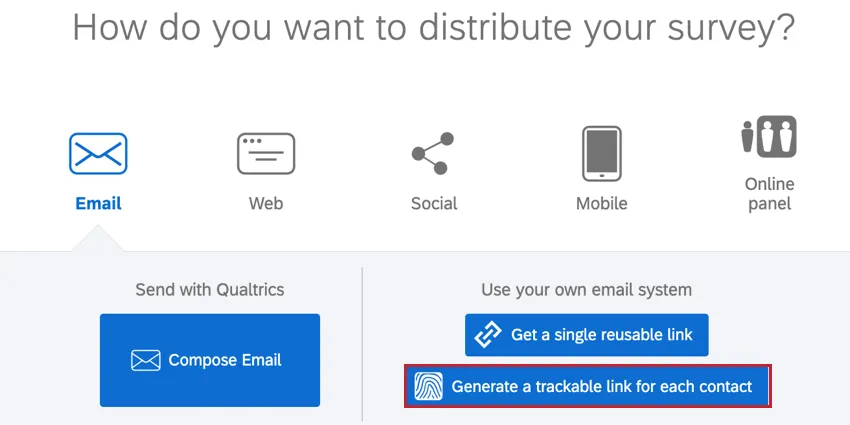
Qtip: If you have not yet activated your survey, you may see something different when you visit the Distributions tab. In this different view, you can click the Generate a trackable link for each contact option.
Select a contact list, sample, segment, or transaction group to generate personal links for, or create a new list.
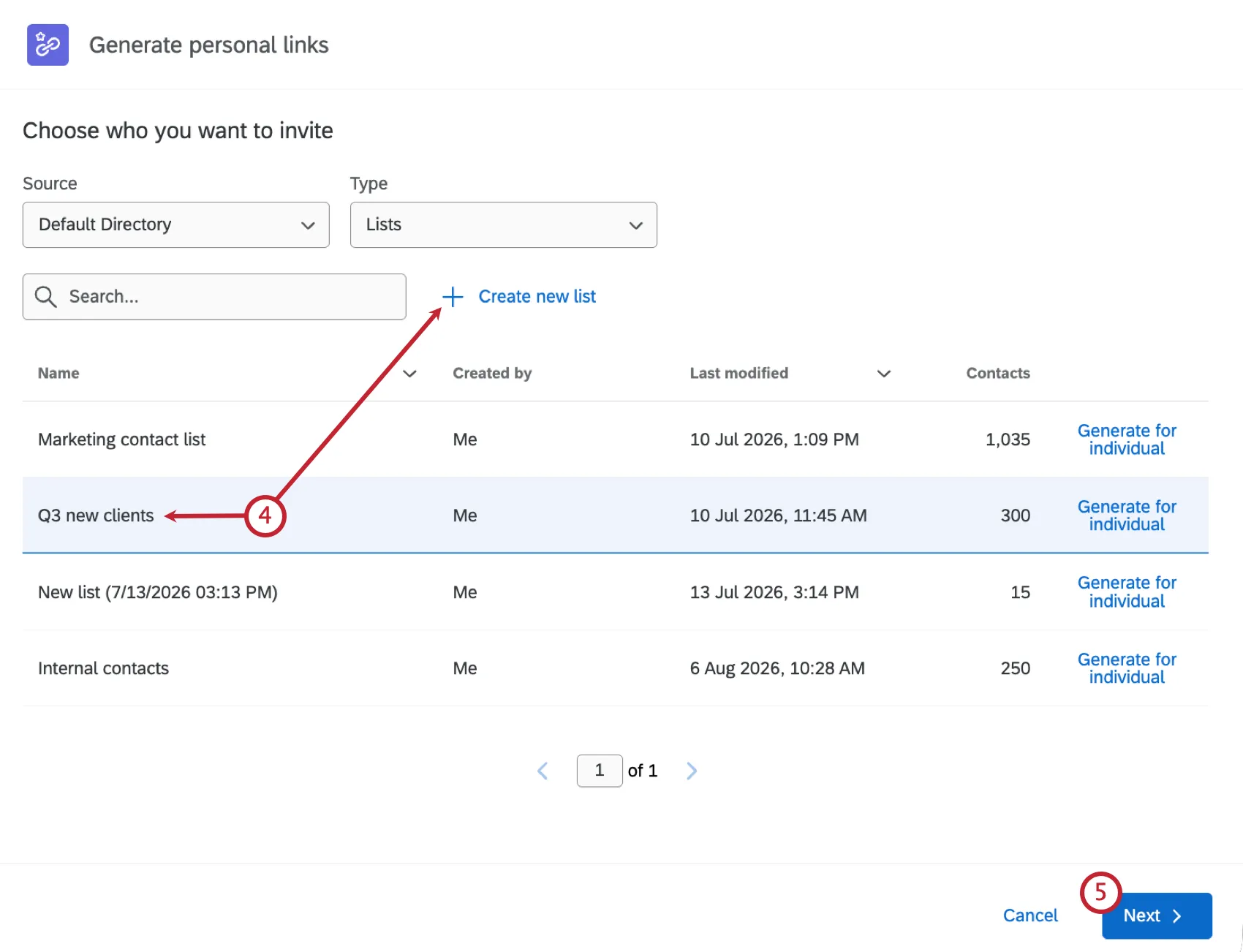
Qtip: You can also click Generate for individual to generate a personal link for one person within a list.
Qtip: If you are using Marketo to manage your contact lists, you can choose from these Marketo lists instead. Visit our page on Marketo Extensions for more information.
Click Next.
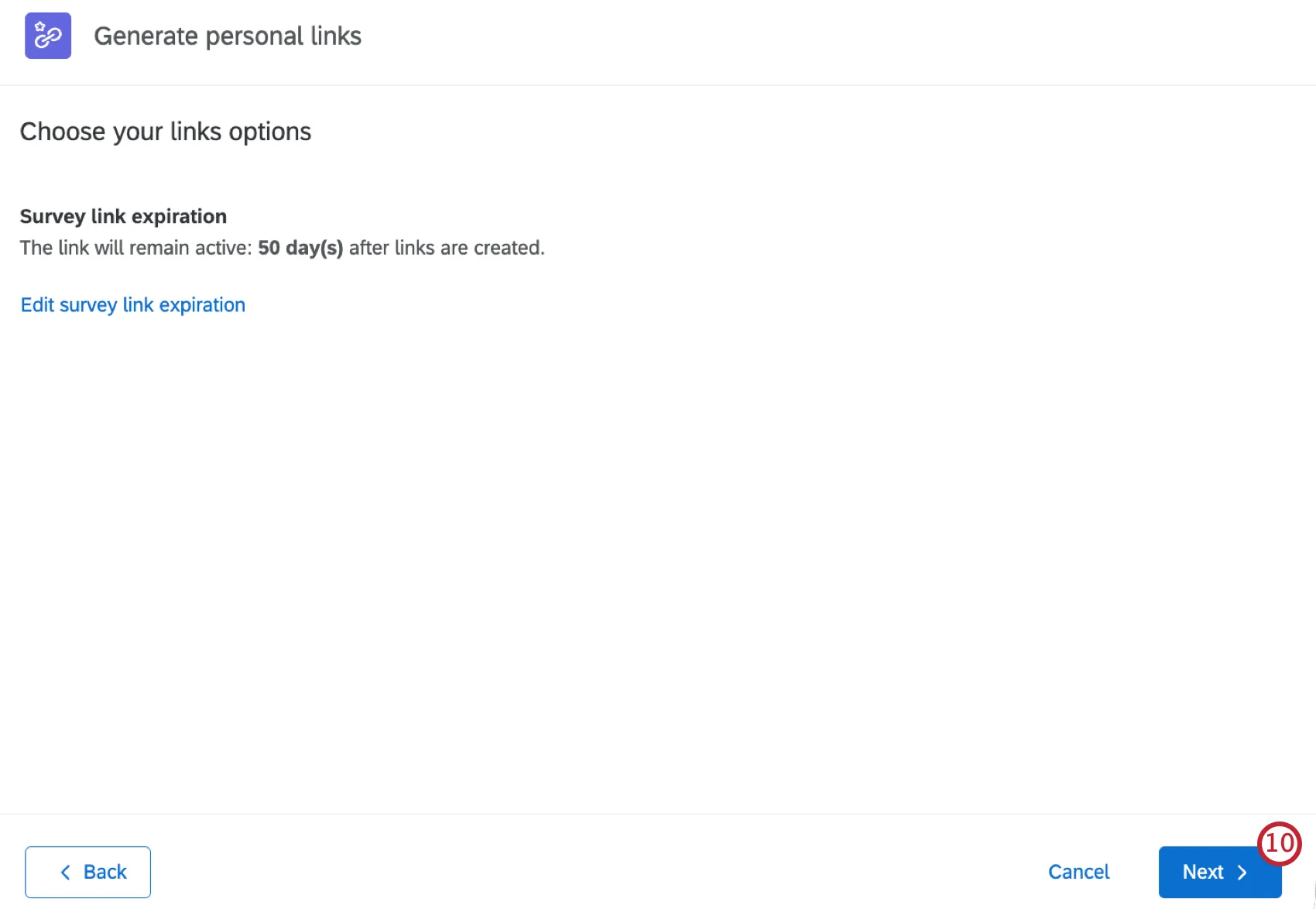
Click Set survey link expiration if you want to set a link expiration date. By default, links are valid for 60 days.
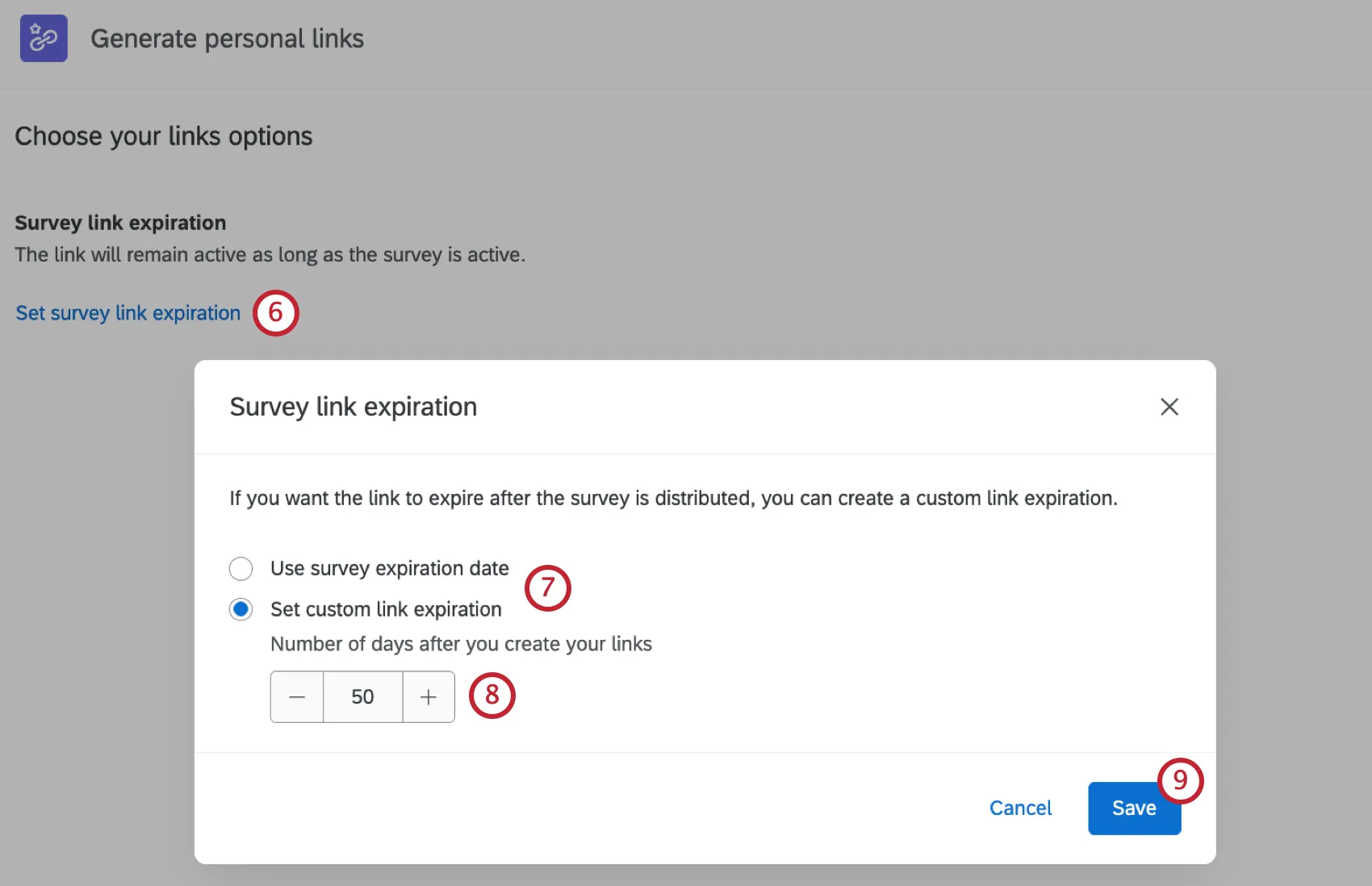
Select if you want to use the survey expiration date or set a custom link expiration.
If you are setting a custom expiration, set the number of days from when links are generated to when they will expire.
Click Save.
Click Next.
Review the details of your links. If you are ready to generate them, select Generate CSV.
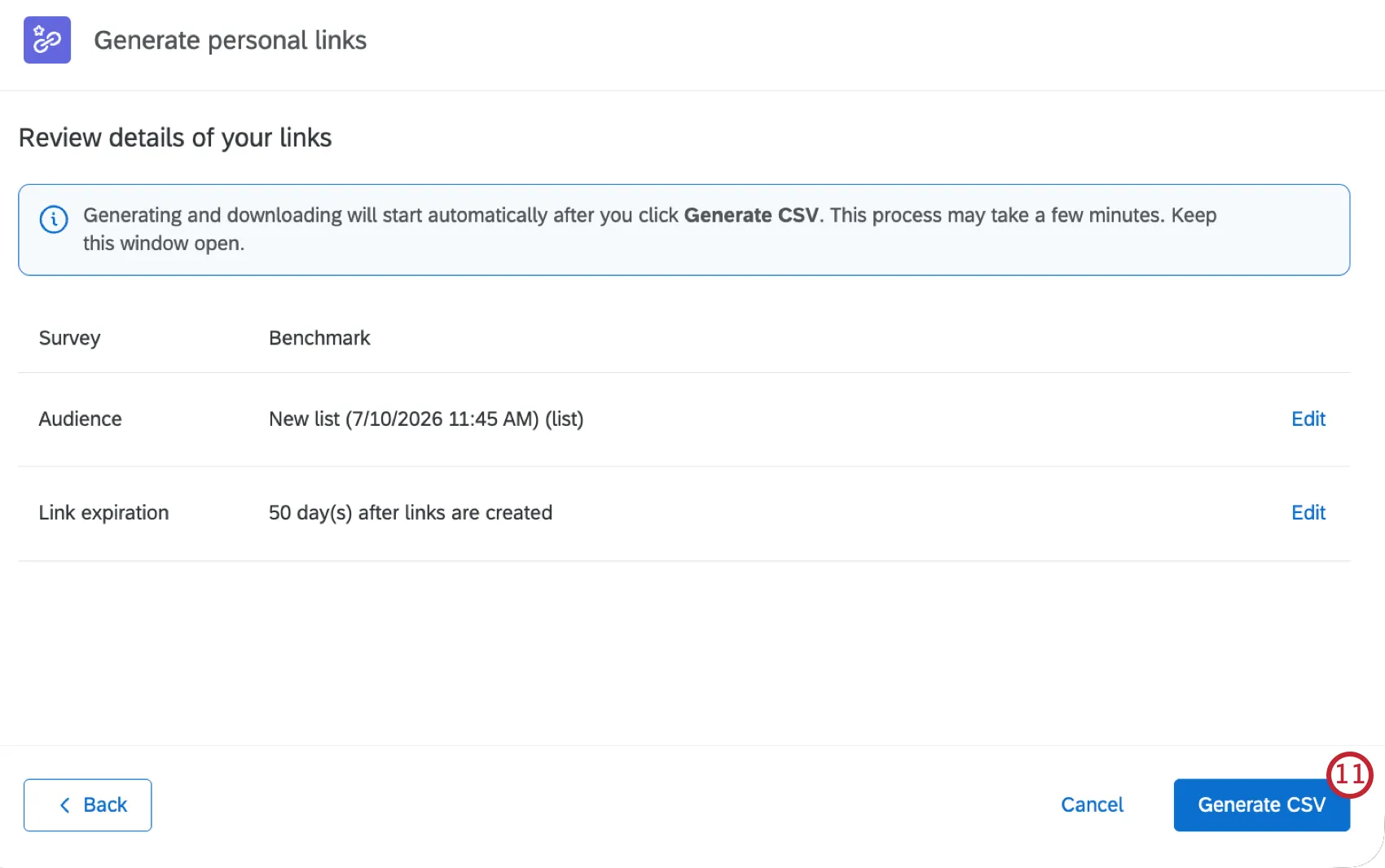
Qtip: It may take several minutes to generate your links. Do not navigate away from the page while they are being generated.
At this point, a spreadsheet will be downloaded to your computer. This spreadsheet will include the names of your contacts, their email addresses, and their personal links. You will be able to re-download this list later by clicking the 3 dots to the far right of the list and selecting Download history.
Qtip: If you select a Marketo list or smart list, a spreadsheet will not automatically be downloaded.
Managing Personal Links
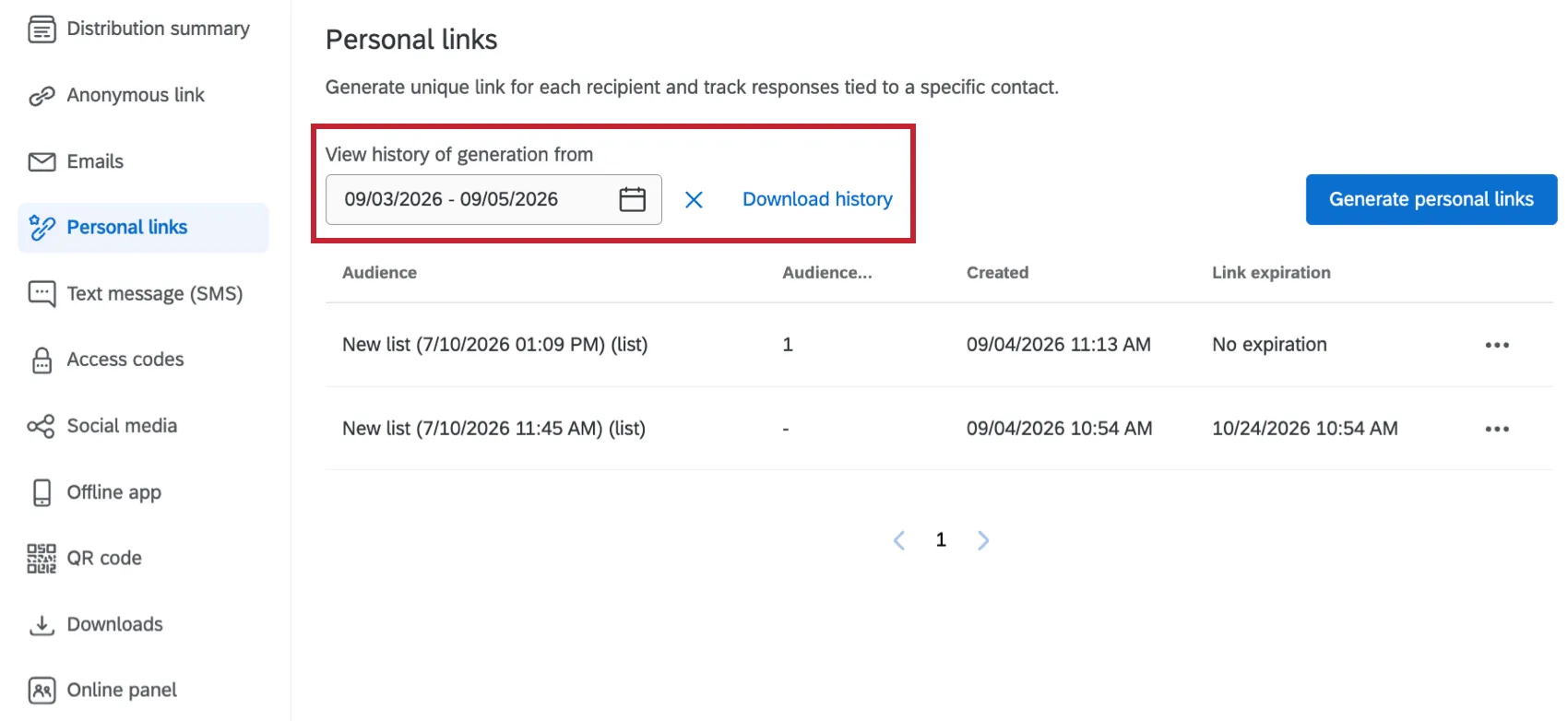
Each time you generate new personal links, you will get a row in your personal links section marking the distribution and giving you various details and metrics.
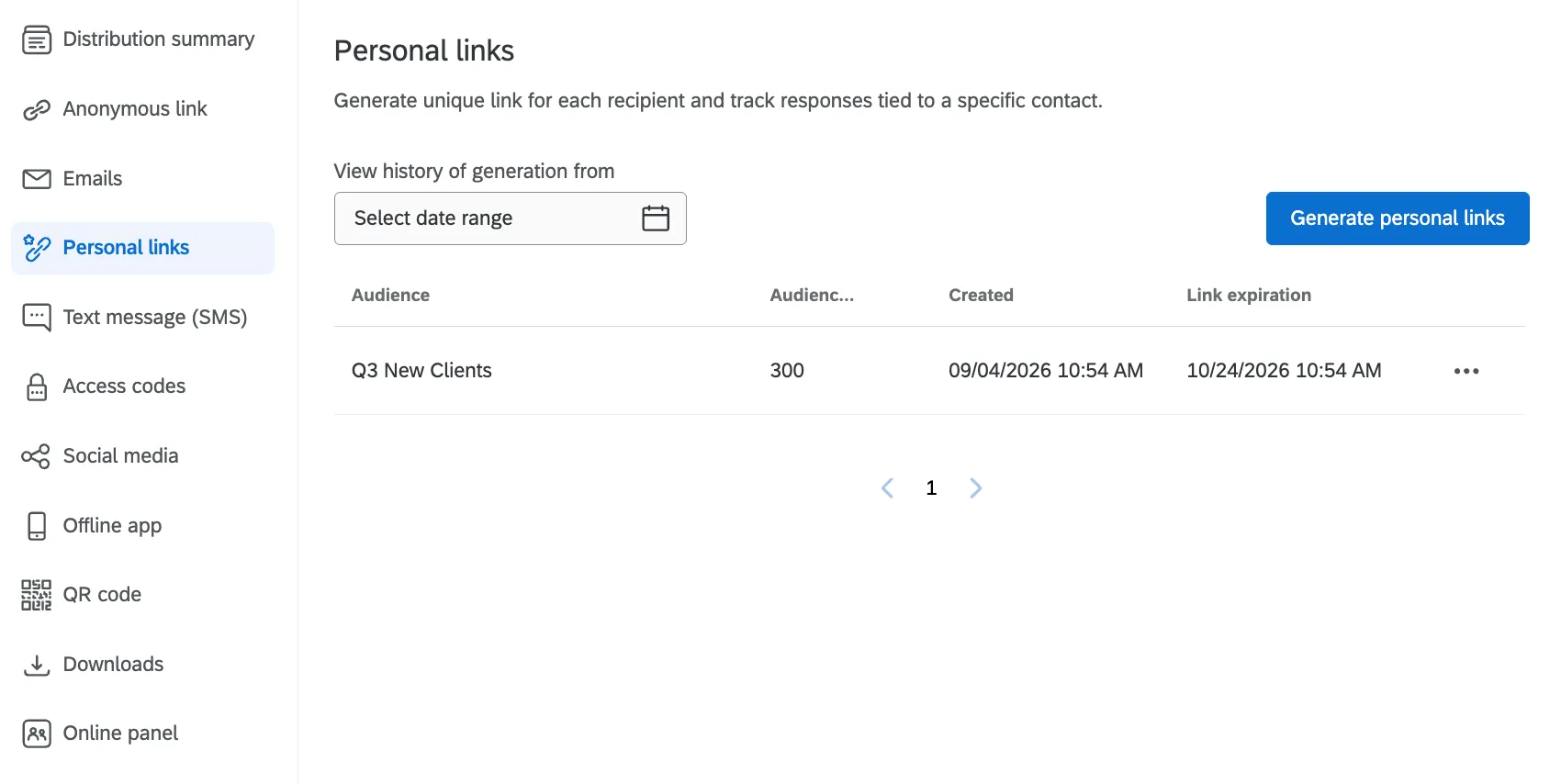
Here are the columns of information you can see for each link:
- Audience: The name of contact list, sample, segment, transaction group, or individual you generated links for.
- Audience size: The amount of individuals you generated links for.
- Created: The day and time the links were generated.
Link Expiration: The day and time all the links in the distribution will expire.

Qtip: Link expiration determines how long participants have to start their survey. Once they start their survey, the incomplete survey responses setting in the survey options takes effect.
Click on a row of personal links to see additional information.
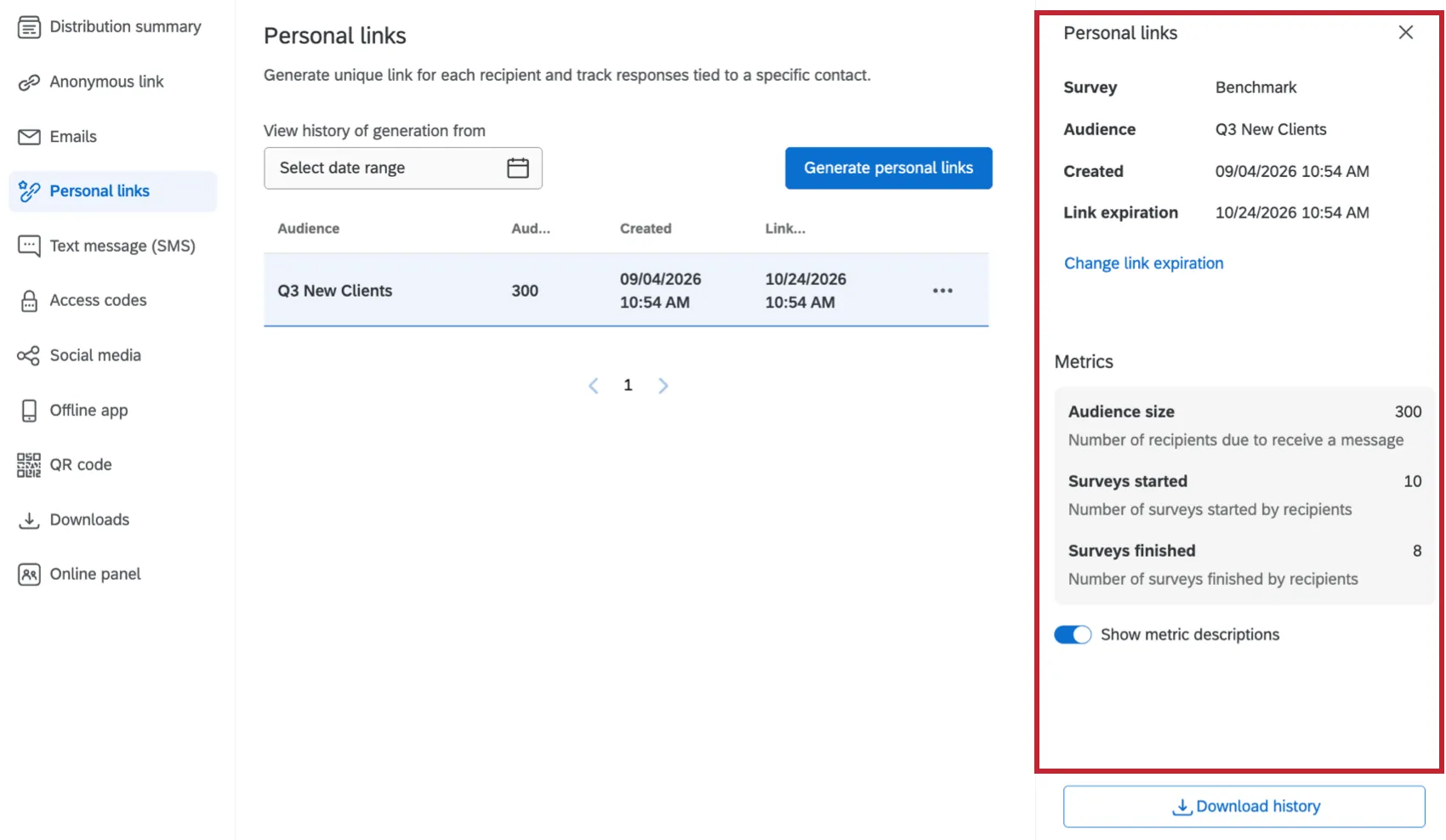
You can see the following information about each set of links:
- Surveys Started: The number of surveys that have been started from the links you generated.
- Surveys Finished: The number of surveys that have been finished from the links you generated.
- Download history: Clicking this will download the links again.
Qtip: If you re-download your personal links, you will see updated statuses for your respondents. These statuses include Survey Started and Survey Finished. If your respondent has yet to start the survey, their status will be Email Not Sent.
Qtip: You can bulk download the distribution histories for your personal links by selecting a date range and clicking Download history.
Types of Projects Supported
Attention: Not all of the features described in this section are included in every license. Please contact Account Services if you are interested in getting access to any of these features.
Personal links are only available to several types of projects, including:
- Survey projects
- XM Solutions
- Conjoint and MaxDiff projects
If your license includes XM Directory, personal links can be generated from right inside the directory. See Export Unique Links in XM Directory for more details.
Any projects not listed above are not compatible with this distribution method. While similar features may exist in other projects, this support page does not cover them.
FAQs
How do I import a mailing list?
How do I import a mailing list?
My participants are telling me that their survey link is not working. What could be causing this?
My participants are telling me that their survey link is not working. What could be causing this?
- Prevent Multiple Submissions: The participant may be attempting to take a survey on the same computer and browser with the Prevent Multiple Submissions feature enabled in the Survey Options. Prevent Multiple Submissions places a cookie on the participants browser that will prevent another survey session from being started from that device. The participant will need to clear their browser cache.
- Used Individual Links: The participant may be trying to access the survey through a used or expired Individual Link. Individual Links are created automatically for every person in your contact list when you send the survey out through the Qualtrics mailer or create Personal Links. This kind of survey link can be used only once and then becomes invalid. We recommend not forwarding any Individual Link to avoid this situation. In addition, if your respondent clicks onto the link, decides not to fill anything out, and leaves the survey for a long time (one week by default), this can also cause the link to close, because the incomplete survey response timeframe has passed. In both of these scenarios, the participant will need to receive another survey link (either through a new email distribution, Personal Link, or the Anonymous Link) in order to access the survey.
- Expiration: The participant may be trying to access a survey that is expired. In the Survey Options, there is an option to set an Expiration Date (after which participants can no longer start new surveys). Turn off the expiration to allow them access to the survey. (Please note that copying a project will copy over all survey settings, including the Expiration Date.)
What are the differences between the Anonymous Link and an Individual Link?
What are the differences between the Anonymous Link and an Individual Link?
How can I make sure the participant only takes the survey once?
How can I make sure the participant only takes the survey once?
If you are distributing your survey through the Qualtrics mailer or Personal Links, then Individual Links will automatically be generated for each participant. These Individual Links can be used only once and then become invalid.
If you are distributing your survey through the Anonymous Link, there are 2 options to prevent participants from retaking the survey:
- Prevent Multiple Submissions: You can enable Prevent Multiple Submissions in your Survey Options. This option will place a cookie in the participant’s browser that will restrict them from retaking the survey on that browser. However, the participant could still clear their cookie cache, use a different browser, or use a different computer in order to take the survey again.
- Authentication: You can use the Authenticator element in the Survey Flow. This option will require the participant to be a member of a contact list you have previously set up within your account. The Authenticator prevents contacts from retaking the survey by using the contact list as an authentication database. (Unless the Reload any previously saved progress upon authentication option is enabled, a single response from each contact is not guaranteed.)
How can I make Individual Links but not use the Qualtrics mailer?
How can I make Individual Links but not use the Qualtrics mailer?
What are Personal Links and how are they different from sending an individual link through the Qualtrics Mailer?
What are Personal Links and how are they different from sending an individual link through the Qualtrics Mailer?
Some of my respondents say that their survey session has expired. Why is this happening?
Some of my respondents say that their survey session has expired. Why is this happening?
Does a survey expire? Under what circumstances?
Does a survey expire? Under what circumstances?
Yes - see Distribution and Survey Expiration for a full explanation.
That's great! Thank you for your feedback!
Thank you for your feedback!